
智能裁剪(Smart Crop)、焦点与自动去白边
当输入图像的宽高比与目标卡片不一致时,除了居中裁剪(Centre Crop)外,libvips 还提供两类高价值的内容感知裁剪能力:
- 智能焦点裁剪(
smartcrop/Interesting):通过信息熵(entropy)或视觉显著性(attention)自动寻找画面主体并保留最关键的矩形区域。 - 自动裁除纯色/透明边框(
find_trim/trim):检测四周与背景色相近的空白边距并返回紧凑包围盒(Bounding Box),广泛用于电商商品白底图与带透明余量的图标裁剪。
中心、方向偏移与信息熵裁剪结果对比
Section titled “中心、方向偏移与信息熵裁剪结果对比”以下三张 600 × 300 画布均由 1938 × 1292 原图经缩略图裁剪生成,分别展示中心裁剪(centre)、向低坐标偏移(north / low)以及按信息熵自动寻焦(entropy):
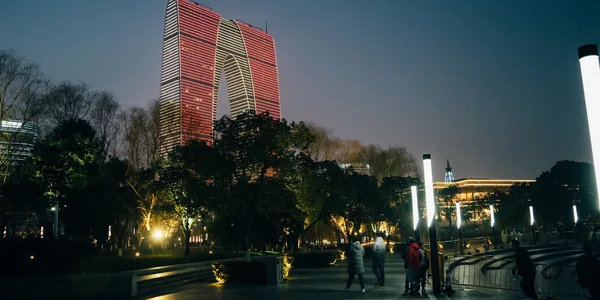
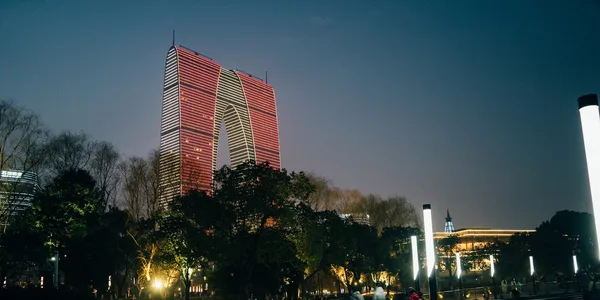
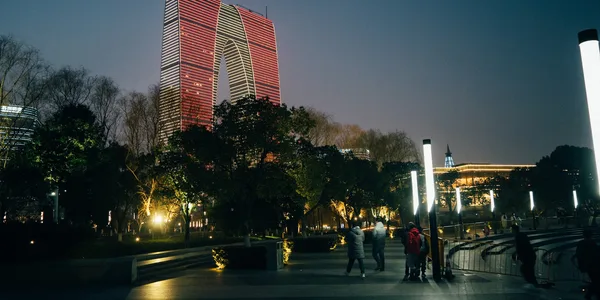
独立调用 SmartCrop(Entropy vs Attention)
Section titled “独立调用 SmartCrop(Entropy vs Attention)”如果业务不仅要在缩略图阶段使用智能裁剪,而是需要在当前分辨率(或自定义缩放后)直接做内容感知裁剪,可以直接调用 SmartCrop(libvips vips_smartcrop):
InterestingEntropy(entropy):将图像切分为网格,计算香农信息熵(Shannon Entropy),优先保留纹理与边缘细节最丰富的区域。InterestingAttention(attention):综合考量高饱和度区域、亮度对比与肤色特征,适合人像与主体突出的摄影作品。
package main
import (    "fmt"    "os"
    "github.com/davidbyttow/govips/v2/vips")
func main() {    if err := vips.Startup(nil); err != nil {        fmt.Fprintln(os.Stderr, err)        os.Exit(1)    }    defer vips.Shutdown()
    image, err := vips.NewImageFromFile("input.jpg")    if err != nil {        fmt.Fprintln(os.Stderr, err)        os.Exit(1)    }    defer image.Close()
    // 在当前图像上按视觉显著性 (Attention) 智能裁剪出 600×300 区域    if err := image.SmartCrop(600, 300, vips.InterestingAttention); err != nil {        fmt.Fprintln(os.Stderr, err)        os.Exit(1)    }
    data, _, err := image.ExportWebp(vips.NewWebpExportParams())    if err != nil {        fmt.Fprintln(os.Stderr, err)        os.Exit(1)    }    if err := os.WriteFile("smart-attention.webp", data, 0o644); err != nil {        fmt.Fprintln(os.Stderr, err)        os.Exit(1)    }}
import sharp from 'sharp';
// sharp 在 resize({ fit: 'cover' }) 的 position 参数中传入 strategy.attention 或 strategy.entropyconst { data, info } = await sharp('input.jpg') .resize(600, 300, { fit: 'cover', position: sharp.strategy.attention, }) .webp({ quality: 82 }) .toBuffer({ resolveWithObject: true });
// info.cropOffsetLeft 与 info.cropOffsetTop 记录了实际选中的裁剪起点console.log(info.cropOffsetLeft, info.cropOffsetTop, data.byteLength);import pyvips
image = pyvips.Image.new_from_file("input.jpg")
# 直接调用 smartcrop,支持 interesting="entropy" 或 "attention"cropped = image.smartcrop(600, 300, interesting="attention")cropped.write_to_file("smart-attention.webp", Q=82)#!/usr/bin/env bashset -euo pipefail
vips smartcrop input.jpg 'smart-attention.webp[Q=82]' 600 300 --interesting attentionInteresting 焦点枚举跨绑定映射
Section titled “Interesting 焦点枚举跨绑定映射”| 裁剪焦点意图 | govips vips.Interesting |
sharp position |
pyvips / vips CLI |
|---|---|---|---|
| 不裁剪(仅按比例适应) | vips.InterestingNone |
fit: 'inside' |
"none" |
| 几何中心 | vips.InterestingCentre |
'centre' / 'center' |
"centre" |
| 偏向低坐标边(上边缘或左边缘) | vips.InterestingLow |
'north' 或 'west' |
"low" |
| 偏向高坐标边(下边缘或右边缘) | vips.InterestingHigh |
'south' 或 'east' |
"high" |
| 信息熵最高区域 | vips.InterestingEntropy |
sharp.strategy.entropy / 'entropy' |
"entropy" |
| 视觉显著性最高区域 | vips.InterestingAttention |
sharp.strategy.attention / 'attention' |
"attention" |
自动裁除纯色或透明白边(FindTrim / trim)
Section titled “自动裁除纯色或透明白边(FindTrim / trim)”当商品图或扫描件四周带有大面积纯白(或任意近色)边框时,可以使用 find_trim 自动定位非背景区域的像素边界 (left, top, width, height):
govips、pyvips与vips CLI采用两步组合:先调用FindTrim/find_trim计算紧凑包围盒坐标,再校验width > 0 && height > 0后调用ExtractArea/crop裁切。sharp提供一步到位的.trim({ background, threshold })方法,并在OutputInfo中返回trimOffsetLeft与trimOffsetTop。
// 检测与白色背景 (#FFFFFF) 差值超过 threshold=10 的主体包围盒bg := &vips.Color{R: 255, G: 255, B: 255}left, top, width, height, err := image.FindTrim(10.0, bg)if err != nil {    return err}if width <= 0 || height <= 0 {    return fmt.Errorf("entire image matched background threshold")}
// 按探测到的包围盒执行裁剪if err := image.ExtractArea(left, top, width, height); err != nil {    return err}
import sharp from 'sharp';
const { data, info } = await sharp('input.jpg') .trim({ background: '#ffffff', threshold: 10, }) .webp({ quality: 82 }) .toBuffer({ resolveWithObject: true });
console.log(`trimmed to ${info.width}x${info.height} (offset ${info.trimOffsetLeft},${info.trimOffsetTop})`);import pyvips
image = pyvips.Image.new_from_file("input.jpg")left, top, width, height = image.find_trim(threshold=10, background=[255, 255, 255])
if width > 0 and height > 0: trimmed = image.crop(left, top, width, height) trimmed.write_to_file("trimmed.webp", Q=82)# vips find_trim 按顺序输出 left、top、width、height 四行数字read -r LEFT TOP WIDTH HEIGHT < <( vips find_trim input.jpg --threshold 10 --background 255,255,255 | tr '\n' ' ')vips crop input.jpg 'trimmed.webp[Q=82]' "$LEFT" "$TOP" "$WIDTH" "$HEIGHT"